My ULTIMATE PowerShell Experience and WHY You Should Do the Same

My ULTIMATE PowerShell Experience and WHY You Should Do the Same
Do you spend hours every day staring at a terminal? Do you keep reinstalling Windows Terminal, Oh My Posh, and your PowerShell profile from scratch on every new machine, praying you remember all the tweaks you made last time? 😅 Look no further! I built Catppuccin PowerShell, a one-shot script that turns a stock Windows terminal into a polished, readable, genuinely enjoyable daily driver — for free, and in a few minutes.
This isn’t just eye candy. It’s a faster, more readable, and reproducible command-line environment, and once you’ve worked in it, going back to the default blue-on-black console feels like a downgrade. 🚀
🛠️ Why I Built This
As a SysOps Engineer, I live in the terminal. Between homelab work, client machines, and teaching, I found myself setting up a new PC way more often than I’d like — and every single time, I’d repeat the same manual dance: install Windows Terminal, grab a Nerd Font, configure Oh My Posh, tweak PSReadLine, back up my old profile “just in case”… You know the drill.
So I automated the whole thing into a single repeatable PowerShell script.
🔵 What’s Under the Hood
- Windows Terminal — tabs, profiles, modern rendering. A massive step up from the legacy console.
- PowerShell 7 — the current, actively maintained runtime, because life’s too short for
powershell.exe. - Oh My Posh — adds useful context to the prompt at a glance (git status, path, exit code), all wrapped in the Catppuccin Macchiato palette.
- FiraCode Nerd Font — bundled directly in the repo, so ligatures and prompt icons render correctly from the very first launch. No hunting for fonts online.
- PSReadLine — better command editing, history search, syntax highlighting, and inline predictions. Less retyping, fewer typos.
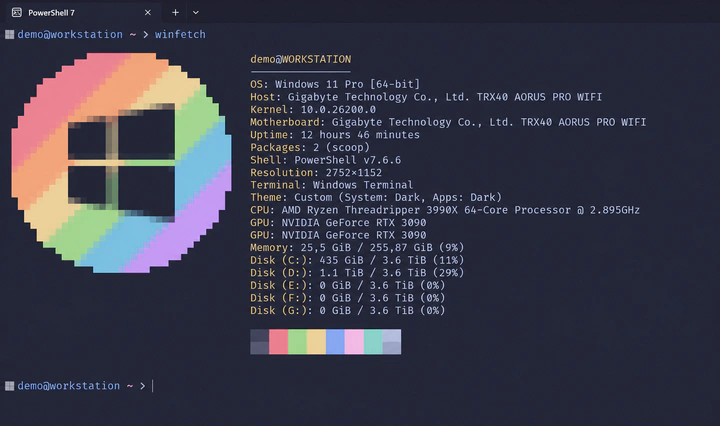
- WinFetch — because every good terminal setup deserves a system-info banner on launch. 😎
The Catppuccin Macchiato palette is the real MVP here: one coherent, low-contrast color scheme across the terminal and the prompt, so commands, parameters, errors, and suggestions are instantly easier to tell apart.
🔵 Installing It Yourself
The repo lives here: github.com/AlexIn-Tech/Catppuccin-PowerShell. Clone it, then run the setup script from the repository root:
Set-ExecutionPolicy -Scope Process Bypass -Force
.\Setup-CatppuccinPowerShell.ps1
Want WinGet to also update packages you already have installed while it’s at it?
.\Setup-CatppuccinPowerShell.ps1 -UpgradePackages
Close every Windows Terminal window and reopen it once setup finishes. That’s it. 🎉
💡 It installs everything through WinGet, and administrator access is normally not required. Your existing Windows Terminal and PowerShell profile settings get timestamped backups before anything is touched, so you can always roll back.
🔵 Built to Be Re-Run
This is the part I care about most as a SysOps: the script is designed to survive a bad run.
- Every step is isolated — if one component fails, the others still get configured, the failure shows up in a clear summary, and the exit code reflects it.
- Font files are only rewritten when their content actually changed, so a second run copies nothing extra.
- If Windows currently has a font loaded (locking the file), the script quietly renames it aside instead of failing on the classic “operation cannot be performed on a file with a user-mapped section open” error.
- A half-finished font install gets repaired instead of silently skipped.
At the end, you get a clean [PASS] / [FAIL] report for every component. No guessing whether something actually worked.
🔵 Go Further with Aichat
If you want to push your terminal even further, check out Aichat. Its shell-assistant mode lets you describe what you want in plain English and it generates the right command for your shell and OS:
aichat -e "show the five largest files in this folder"
⚠️ Always review a generated command before you run it.
🚀 Why You Should Do the Same
A terminal is where I spend most of my working day, and a small investment in making it coherent, readable, and reproducible pays off every single time I sit down to work — or every single time I set up a new machine. This script turns that investment into a two-minute job instead of a recurring chore.
If you’re a SysOps, a developer, or just someone who lives in PowerShell, give it a spin. I’d genuinely love your feedback.
⭐ Support the Project
If Catppuccin PowerShell saved you the same setup headache it used to save me, the best way to say thanks is a star on GitHub. It costs nothing, takes two seconds, and it’s what helps other people discover the project.
And while you’re there, follow me for more open-source tools coming out of my homelab and daily SysOps work. This won’t be my last Catppuccin project — I’ll be tagging everything related to it under the Catppuccin tag on this blog, so stay tuned. 🌸
Enjoy your new terminal 😎
AlexIn Tech
